

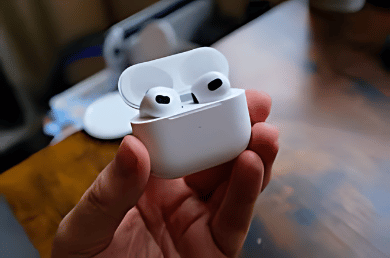
Resetting your AirPods Pro can resolve various issues like connectivity problems, poor sound quality, or battery malfunctions. Whether you’re troubleshooting a problem or preparing to sell or give away your AirPods, a reset can return them to their factory settings. Below is a comprehensive guide on how to reset your AirPods Pro, including steps for soft and hard resets.
When Should You Reset AirPods Pro?
There are several reasons why you may need to reset your AirPods Pro:
- Connectivity Issues: If your AirPods are having trouble connecting to your iPhone, iPad, or any other device, a reset may solve the issue.
- Battery Problems: Inconsistent battery performance or inaccurate battery level readings can often be fixed by a reset.
- Audio Distortion: Poor sound quality, audio lag, or connection dropouts may be resolved by resetting.
- Pairing with a New Device: If you’re selling, giving away, or pairing your AirPods with a new device, resetting will ensure your data is wiped.
How to Reset AirPods Pro
Now, let’s dive into the step-by-step process.
Step 1: Forget AirPods Pro from Your Device
Before resetting the AirPods Pro, it’s essential to remove them from your device’s Bluetooth memory. Follow these steps:
For iOS Devices:
- Open Settings on your iPhone or iPad.
- Navigate to Bluetooth.
- Find your AirPods Pro in the list of devices and tap the (i) icon next to their name.
- Tap Forget This Device, then confirm by tapping Forget Device.
For Mac:
- Click the Apple menu and select System Settings.
- Navigate to Bluetooth.
- Locate your AirPods Pro in the list, then click the (i) button next to their name.
- Choose Forget This Device, then confirm.
This step ensures that your device won’t automatically reconnect to the AirPods after resetting them.
Step 2: Place AirPods Pro in Their Charging Case
- Put your AirPods Pro into their charging case. Make sure both AirPods are securely inside the case.
- Close the case lid. Wait for 30 seconds. This prepares the AirPods for the reset process.
Step 3: Initiate the Reset Process
- Open the charging case lid. Keep the AirPods inside the case, but open the lid to reveal them.
- Locate the setup button. On the back of the AirPods Pro charging case, you’ll find a small, circular button.
- Press the button and hold it for 15 seconds. You’ll notice the status light on the front of the case change colors. It will flash amber and then white, indicating that the reset process is complete.
Step 4: Reconnect AirPods Pro to Your Device
After resetting the AirPods, they will no longer be connected to any of your devices. To reconnect:
For iPhone or iPad:
- Open the Settings app and navigate to Bluetooth.
- Open the charging case (with the AirPods inside), then hold it near your iPhone or iPad.
- A setup animation will appear on your device. Follow the on-screen instructions to connect.
For Mac:
- Open Settings and click on Bluetooth.
- Open the charging case and hold it near your Mac.
- Once the AirPods appear in the Bluetooth menu, click Connect.
What to Do If Resetting AirPods Pro Doesn’t Work
If the steps above don’t resolve your issue, here are some additional tips:
- Charge Your AirPods and Case
Make sure both the AirPods and the charging case have enough battery life. Plug the charging case into a power source and let it charge for at least 15 minutes before attempting another reset.
- Clean Your AirPods:
Sometimes dirt or debris can cause connectivity or sound issues. Use a microfiber cloth or a soft brush to clean the AirPods and the case.
- Update Firmware
Ensure that your AirPods Pro firmware is up to date. You can check for updates in the Bluetooth section of your device settings.
Soft Reset vs. Hard Reset: What’s the Difference?
- Soft Reset
This involves disconnecting the AirPods from your device and reconnecting them without erasing any settings. It’s a simpler process, often done to fix minor issues like connection drops.
- Hard Reset
A hard reset returns your AirPods Pro to factory settings, removing all previous device pairings. This is a more comprehensive reset and is recommended when soft resets don’t fix the problem.
Troubleshooting Common Issues After Resetting AirPods Pro
Even after resetting, you might still encounter some issues. Here’s how to resolve common problems:
- AirPods Won’t Connect to a New Device
Try resetting your network settings on your phone or restarting your device. Afterward, attempt pairing the AirPods again.
- AirPods Pro Audio Is Distorted
Make sure no obstructions or interference are affecting the Bluetooth connection. You may also want to clean the AirPods and ensure both are functioning correctly.
- AirPods Pro Battery Drains Quickly
If battery issues persist after resetting, check the battery health of both your AirPods and the case. If it continues, contact Apple Support for possible battery replacement.
Prevent Future AirPods Pro Issues After Reset
Once your AirPods Pro have been successfully reset and reconnected, taking a few preventive steps can help avoid recurring problems. Keeping Bluetooth enabled only when needed, storing your AirPods in their case when not in use, and avoiding exposure to moisture or extreme temperatures can improve long-term performance.
Additionally, regularly checking for iOS or macOS updates ensures better compatibility and stability with your AirPods Pro. These small habits can reduce the need for frequent resets and help maintain consistent sound quality and connectivity
Conclusion
Resetting your AirPods Pro is a simple yet effective solution for resolving connectivity and performance issues. Whether you’re troubleshooting problems or preparing to hand them off to a new owner, a full reset can bring them back to their factory state. This guide helps you with the complete process on how to reset AirPods Pro. You can quickly reset your AirPods Pro and enjoy a seamless audio experience once again.
Apart from that if you want to know about “How to buy twitter” then please visit our “Tech” Category.
FAQs
On your device, go to Bluetooth settings, find your AirPods Pro, and choose “Forget This Device”. Place both AirPods in their charging case, close the lid and wait 30 seconds. Open the case lid, press and hold the setup button on the back of the case for 15 seconds until the status light flashes amber and then white. Your AirPods Pro are now reset and ready to be paired with a new device.
After pressing and holding the setup button on the back of the case, the status light will flash amber and then white. This shows that the reset has been done. If you do not see this flashing pattern, the reset may not have been successful.
Yes, you can reset your AirPods Pro regardless of the device you use. The reset process is performed on the AirPods themselves, not on the device they are paired with.
